Microsoft Word remains the go‑to tool for educators, administrators, and students who need a fast, printable and fully editable academic schedule. Whether you’re building a daily class timetable, a weekly planner for teachers, an assignment‑tracking student planner, or an institution‑wide academic calendar, Word’s .docx format lets you customize fonts, colors, logos and table layouts without any extra software. Hundreds of free download options are available, ranging from portrait‑oriented lesson‑plan sheets to landscape‑style six‑day timetables, all macro‑free and ready for immediate printing or sharing via OneDrive, Google Docs or LibreOffice. Because the templates are editable Word documents, you can easily add or remove rows for holidays, insert extra‑curricular activities, or convert the file to PDF for distribution. In short, a Word‑based education schedule template gives you the flexibility of a spreadsheet with the familiar, user‑friendly interface of Microsoft Word—perfect for teachers, students, and school staff who need a reliable, customizable scheduling solution.
Why Use a Word‑Based Schedule Template?
Microsoft Word files (.docx) are universally recognized, meaning a schedule created on a Windows PC will open without loss of formatting on a Mac, Chromebook or mobile device. The same document can be edited in the online versions of Word, Google Docs or LibreOffice, allowing teachers and students to collaborate in real‑time even when they do not have the desktop application installed.
Instant Editing and Personalization
A Word‑based template puts every element—tables, text boxes, color fills and header graphics—directly on the page, so users can replace placeholder text, adjust column widths or swap school colors with a few clicks. Because the file is fully macro‑free, there is no need to enable security settings, making the template safe for school networks and easy to share by email or cloud storage.
Print‑Ready Quality and Seamless Integration
Word automatically handles pagination, page‑size settings (US Letter or A4) and high‑resolution image embedding, guaranteeing that a printed timetable looks exactly as designed. Moreover, the same file can be imported into learning‑management systems, inserted into PowerPoint presentations, or saved as a PDF for distribution to parents and staff, providing a single, versatile solution for every scheduling need.
Download Our Free Academic & Education Schedules Templates
All of our academic and education schedule templates are stored on our own server, so you never have to leave the page or navigate to a third‑party portal. When you scroll through the gallery, each template is presented with a clear thumbnail that shows the exact layout, color scheme and orientation, allowing you to choose the design that best fits your classroom or administrative workflow.
Understanding the Variety of Academic & Education Schedules
Before you decide which template to download, it helps to recognize that schools and teachers use a spectrum of schedules to manage everything from the minute‑by‑minute flow of a classroom to the year‑long timeline of institutional events. Each schedule type serves a distinct purpose, yet all share the same advantage of being fully editable Word documents that can be customized, printed, or shared digitally with a single click. Below are eight common schedule formats, each with a brief description of when and how it is most effectively employed.
Daily and Hourly Timetables
A daily timetable breaks the school day into precise time slots, usually ranging from 30‑minute to one‑hour intervals. The grid places days of the week on the vertical axis and time periods on the horizontal axis, allowing teachers to insert subject names, room numbers, and color‑coded labels for core versus elective lessons. Because the layout lives inside a Word table, educators can instantly adjust the start time of the first period, merge cells for longer activities such as labs, or add notes for homework without disturbing the overall structure.
Weekly Class Schedules (Five‑, Six‑, and Seven‑Day Variations)
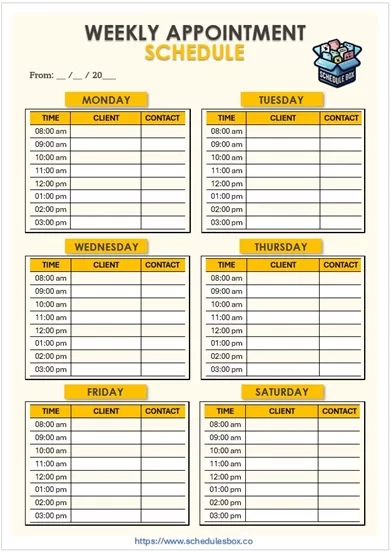
Weekly schedules extend the daily grid across an entire week and are the most frequently printed handout for students. The five‑day version follows the conventional Monday‑through‑Friday pattern, while the six‑day layout adds a Saturday column for weekend academies, remedial programs, or religious‑school classes. A seven‑day design accommodates rotating schedules that include Sunday sessions, such as language institutes or performing‑arts conservatories. Each variation maintains the same underlying table, so schools can hide or reveal extra days with a simple row‑deletion operation.
Semester‑Long Academic Calendars
When administrators need to view the whole academic year at a glance, the semester calendar provides month‑by‑month tables where each cell represents a single day. Important dates—first day of school, holiday breaks, mid‑term examinations, and graduation ceremonies—can be entered directly into the cells, and a shaded border can be applied to distinguish between terms. Because the file is a Word document, the calendar can be branded with a logo, customized with school colors, and saved as a master template for use year after year.
Term Planner
A term planner builds on the semester calendar but adds space beneath each month for teachers to outline weekly learning objectives, assessment windows, and pacing notes. This hybrid layout enables educators to align daily lessons with broader curricular goals, and the editable text boxes make it easy to insert hyperlinks to digital resources or embed a QR code that links to an online syllabus.
Extracurricular Activity Schedules
Beyond classroom instruction, schools run clubs, sports teams, and after‑school programs that require their own timetable. The extracurricular template features columns for day, time, location, and supervising staff, while rows can be color‑coded to differentiate between athletics, arts, and academic clubs. Since the schedule is a Word table, administrators can quickly add a new activity row or change the meeting time without redesigning the entire layout.
Facility‑Booking Schedules
Libraries, computer labs, gymnasiums, and auditoriums often operate on a reservation system. The facility‑booking template provides a matrix where each row represents a specific room and each column a time slot, allowing staff to enter the name of the requesting teacher, the purpose of the reservation, and any special equipment needed. The document can be duplicated for multiple locations, and because it is saved as a .docx, it can be printed as a wall‑mounted schedule or shared as a live document for staff to edit collaboratively.
Assignment‑Tracker Schedules
Students benefit from a combined timetable that also lists homework, projects, and test dates. The assignment‑tracker layout adds a dedicated column beside each class period where learners can write the assignment description, due date, and priority level. This integration helps students visualize academic workload in the same view they use for class times, reducing the chance of missed deadlines.
Teacher Rotation or Block Schedules
High schools and colleges often employ block scheduling, where teachers teach longer periods on alternating days. The rotation template divides the week into “A” and “B” blocks, with each block containing a set of extended class periods. Rows can be merged to represent a three‑hour science lab or an eight‑hour workshop, and the template includes placeholders for rotating subjects, allowing administrators to generate a master schedule that automatically reflects the alternating pattern.
Holiday, Exam, and Parent‑Teacher Conference Schedule
A specialized holiday‑exam schedule consolidates all non‑instructional days—public holidays, teacher‑in‑service days, exam weeks, and scheduled parent‑teacher conferences—into a single reference sheet. Each entry includes the date, description, and any relevant instructions (for example, “students must bring calculators”). Because the file is a Word document, schools can add a column for the responsible staff member, print a colored version for hallway notices, or export the table to PDF for distribution to families.
These eight schedule types illustrate how a single family of Word‑based templates can address every level of academic planning, from the moment‑to‑moment rhythm of a classroom to the strategic overview of an entire school year. By selecting the layout that matches your specific need, you gain a flexible, editable tool that streamlines organization, improves communication, and supports a smoother educational experience for teachers, students, and administrators alike.
Layout & Formatting Options
The first decision when customizing a schedule template is whether the page should be oriented vertically (portrait) or horizontally (landscape). Portrait layouts are ideal for compact daily timetables that need to fit on a single sheet of paper, especially when the school’s stationery is already standardized in that format. Landscape orientation, on the other hand, provides extra horizontal space, which is particularly useful for weekly schedules that contain multiple days and several time slots per day. Because the underlying Word file stores the table as a flexible grid, switching between orientations is as simple as changing the page‑setup property; the table automatically re‑flows to fill the new dimensions while preserving column widths and row heights.
Color Scheme and Visual Hierarchy
A well‑designed schedule uses color not only for aesthetic appeal but also to create a visual hierarchy that guides the reader’s eye. Primary subjects can be assigned a distinct hue, while supplementary activities such as clubs or free periods receive a lighter shade of the same family. Word’s built‑in theme colors allow you to apply a consistent palette across headings, table borders, and shading with a single click, ensuring that any later color adjustment is reflected throughout the document. For institutions that prefer a more formal appearance, a monochrome version can be produced by removing all cell shading and relying on bold typefaces to differentiate sections.
Paper Size, Margins, and Print‑Ready Layout
Academic institutions commonly use either US Letter (8.5 × 11 in) or A4 (210 × 297 mm) paper. The template files are pre‑configured with default margins that leave sufficient white space for binding or stapling while keeping the printable area maximised. If a school’s printing policy requires narrower margins, the Word document permits a quick margin adjustment in the layout tab; the table automatically scales to maintain proportional spacing, eliminating the need to rebuild the schedule from scratch. Additionally, the templates include a header that can host a school logo and a footer for page numbers or contact information, both of which remain anchored during printing so that the final output looks polished whether it is distributed as a handout or posted on a bulletin board.
Font Choices and Accessibility
Choosing legible fonts is essential for readability across age groups. The default templates use a sans‑serif typeface such as Calibri or Arial for body text because of its clean lines and high on‑screen clarity, while headings are set in a slightly larger, bold weight to create a clear distinction. For schools that need to meet accessibility standards, the font size can be increased without breaking the table layout, and Word’s built‑in contrast checker can be employed to verify that text color against background shading meets WCAG guidelines. By controlling orientation, color, paper size, margins, and typography within a single Word file, educators can produce a schedule that is both aesthetically consistent and functionally adaptable to any school’s branding and printing requirements.
Top 5 Frequently Asked Questions in Market
Here are our hand-picked Top 5 FAQs to assist our website visitors,
1. Can I edit the template on a Mac or on Google Docs without losing the original formatting
Yes, the .docx files we provide are fully compatible with Microsoft Word for Windows, Word for macOS, and the web‑based version of Word that powers Google Docs; when the document is opened in any of these environments the table structures, color fills and header graphics remain intact because they are stored using the Open XML standard rather than proprietary macros. If you choose to work in Google Docs the conversion process preserves the layout, although certain advanced Word‑only features such as custom style sets may appear as regular paragraph formatting, which you can then re‑apply using Docs’ own style tools without compromising the overall design.
2. How do I change a five‑day schedule into a six‑day schedule for weekend classes
To add a Saturday column simply place the cursor in the table row that contains the day headings, select the entire row, and use the “Insert → Table → Insert Columns After” command; a new column will appear at the far right where you can type “Saturday” and then populate the corresponding time slots. Because the underlying table is dynamic, the column width will automatically adjust to maintain equal spacing across all days, and any merged cells that span multiple days can be re‑merged or split as needed to accommodate longer Saturday sessions such as extracurricular workshops or remedial instruction.
3. Is it safe to share the downloaded .docx file with students or colleagues
Absolutely; the templates are deliberately built without any embedded macros, VBA scripts or external links, which eliminates the security risks often associated with executable content. When you distribute the file—whether through email, a cloud‑share folder or a school intranet—recipients receive a plain‑text Word document that can be opened in any standard office suite, and because the file is macro‑free most institutional antivirus scanners will flag it as safe. You may also protect the template by saving a copy as a .dotx file, which locks the layout while still allowing users to fill in their own data.
4. What is the best way to convert the schedule to PDF for printing or posting online
The most reliable method is to open the .docx in Microsoft Word and select “File → Save As,” then choose PDF as the output format; this process embeds all fonts, colors and table borders directly into the PDF, guaranteeing that the printed version looks exactly as you see on screen regardless of the printer driver or operating system used by the end‑user. If you prefer a cloud‑based solution you can upload the Word file to Google Docs and use the “Download → PDF Document” option, which produces a comparable result, though you should verify that any custom fonts have been correctly rendered before distributing the final file.
5. Can I customize the template to include a school logo and a QR code that links to the online syllabus
Yes; because the document is a fully editable Word file you can insert a logo at the top of the header by clicking into the header area, selecting “Insert → Pictures,” and choosing an image file saved on your computer; the logo will repeat on every page automatically. To add a QR code you may generate one with any free online QR generator, save the image, and then insert it into the footer or a designated side column. Word’s picture‑formatting tools let you resize the code without distortion, ensuring that when the schedule is printed or exported to PDF the QR code remains scannable, thereby providing a seamless bridge between the physical timetable and digital resources such as the school’s learning‑management system or an online syllabus.
